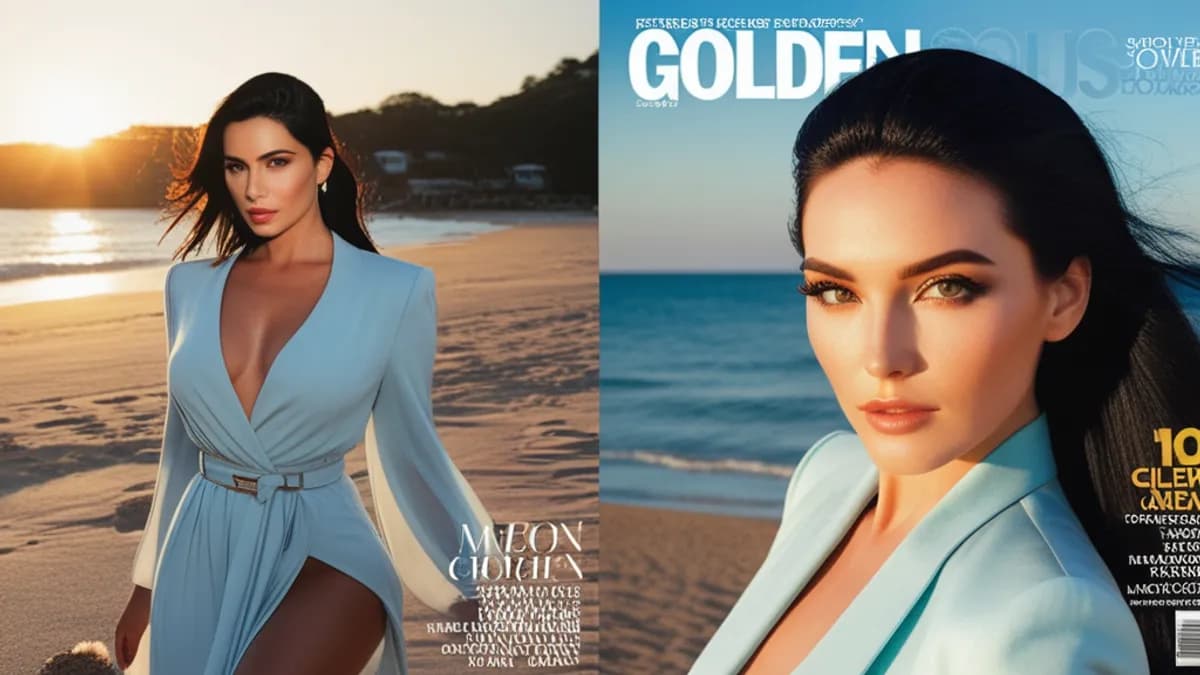
Short answer: A realistic AI image prompt has four parts in order — subject → context → photographic detail → quality/realism cues — plus a negative prompt that removes the "plastic" look. Describe it like you're briefing a photographer, not like you're typing keywords into a search box.
The 4-part prompt formula
| Part | What it covers | Example phrase |
|---|---|---|
| 1. Subject | Who/what, and the key attributes | "a woman in her late 20s, freckles, natural makeup" |
| 2. Context | Setting, pose, action, clothing | "sitting by a window, morning light, casual sweater" |
| 3. Photographic detail | Camera, lens, lighting | "shot on 50mm, shallow depth of field, soft natural light" |
| 4. Realism cues | Texture/quality words | "skin texture, fine detail, candid, photorealistic" |
Put them in that order. Models weight the front of the prompt more, so the subject leads.
Why "photographic detail" is the trick most people miss
The difference between a realistic photo and a plastic render is usually camera and lighting language. Adding terms a real photographer would use pulls the model toward photography rather than illustration:
- Lens:
35mm, 50mm, 85mm portrait
- Depth:
shallow depth of field, bokeh background
- Light:
soft natural light, golden hour, window light, overcast
- Capture style:
candid, snapshot, amateur photo (yes — "amateur" often looks more real than "professional")
Counter-intuitively, words like cinematic, 8k, ultra detailed, and professional often push toward the over-polished plastic look. See the full breakdown in why your AI photos look plastic.
The negative prompt does half the work
The negative prompt removes what you don't want. A solid baseline:
plastic skin, airbrushed, deformed, extra fingers, bad hands,
watermark, text, blurry, oversaturated, cartoon, 3d render
On ximages this baseline is applied automatically, so you only add scene-specific exclusions on top.
Worked example
Weak prompt:
beautiful woman, 8k, ultra detailed, professional, masterpiece
This gives a glossy, generic, plastic result.
Strong prompt:
a woman in her late 20s with freckles and natural makeup, sitting by a window in a casual sweater, morning light, shot on 50mm, shallow depth of field, candid, visible skin texture, photorealistic
Same model, completely different realism — because it reads like a photo brief.
Tips that consistently help
- Be specific about age, features, and wardrobe — vague prompts get generic faces.
- One scene per prompt. Don't stack three ideas; generate them separately.
- Lower the guidance value if results look over-cooked (high guidance = more plastic).
- Iterate, don't rewrite. Change one variable at a time to learn what each word does.
- Use the AI prompt assistant if you're stuck — on ximages you can describe the scene in plain language (any of 5 languages) and it writes the structured English prompt for you.
Frequently asked questions
What's the most important part of a prompt?
The subject (it leads) and the photographic detail (it creates realism). Skipping camera/lighting language is the #1 reason images look fake.
Why do my images look like plastic 3D renders?
Over-polish keywords (8k, cinematic, ultra detailed) plus a high guidance value. Swap them for real photography terms and lower guidance. Full guide: why your AI photos look plastic.
Do I need to write in English?
Better prompt adherence is usually in English, but on ximages you can write in Chinese, Japanese, Korean, or German and the assistant translates to a structured English prompt.
How long should a prompt be?
Long enough to cover the four parts, short enough to stay focused — usually 1–3 sentences. More isn't better past that.
Summary
Realistic AI images come from briefing the model like a photographer: subject first, then context, then camera and lighting, then a few texture cues — with a negative prompt that strips the plastic look. Avoid the over-polish keywords. Change one thing at a time. When in doubt, let the prompt assistant structure it for you.
Related: Why your AI photos look plastic · 12 NSFW prompt traps to avoid · Multi-person scene prompts · Getting started with bigASP v2.5